> ## Documentation Index
> Fetch the complete documentation index at: https://docs.topk.io/llms.txt
> Use this file to discover all available pages before exploring further.
# MCP
> Get started with TopK File Search using our MCP server.
The TopK MCP server lets any MCP-compatible AI agent query your datasets using natural language. Once connected, your agent can:
* **List datasets** — discover what data is available
* **Ask questions** — query datasets with natural language and get grounded answers
**Prerequisites**
* TopK account ([Sign up here](https://console.topk.io/login))
* TopK API key ([Get API key here](https://console.topk.io/api-key))
## Authentication
To authenticate with the MCP server, you need to provide your `TOPK_API_KEY`.
Get your API key [here](https://console.topk.io/api-key).
## Setup
```bash theme={null}
claude mcp add --transport http topk https://elastica.api.topk.io/mcp \
--header "Authorization: Bearer "
```
```bash theme={null}
claude mcp add --transport http topk https://monstera.api.topk.io/mcp \
--header "Authorization: Bearer "
```
```bash theme={null}
codex mcp add topk --url https://elastica.api.topk.io/mcp --bearer-token-env-var TOPK_API_KEY
```
```bash theme={null}
codex mcp add topk --url https://monstera.api.topk.io/mcp --bearer-token-env-var TOPK_API_KEY
```
You need to set the `TOPK_API_KEY` environment variable that **Codex** will use in the
Authorization header.
Go to Settings → Developer -> Edit Config.
Make sure you have **Developer Mode** enabled in Claude Desktop.
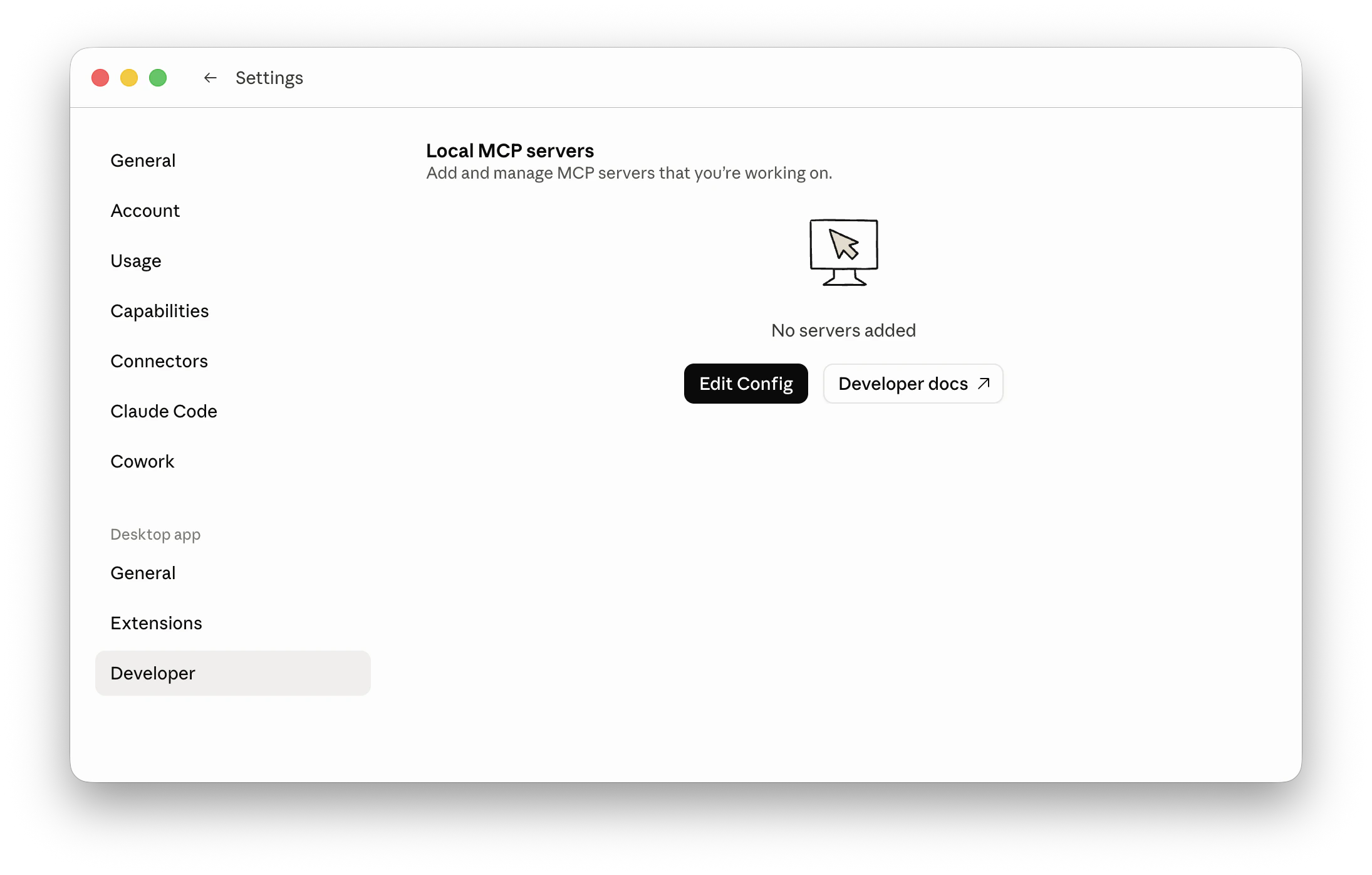 Open your Claude Desktop JSON config file:
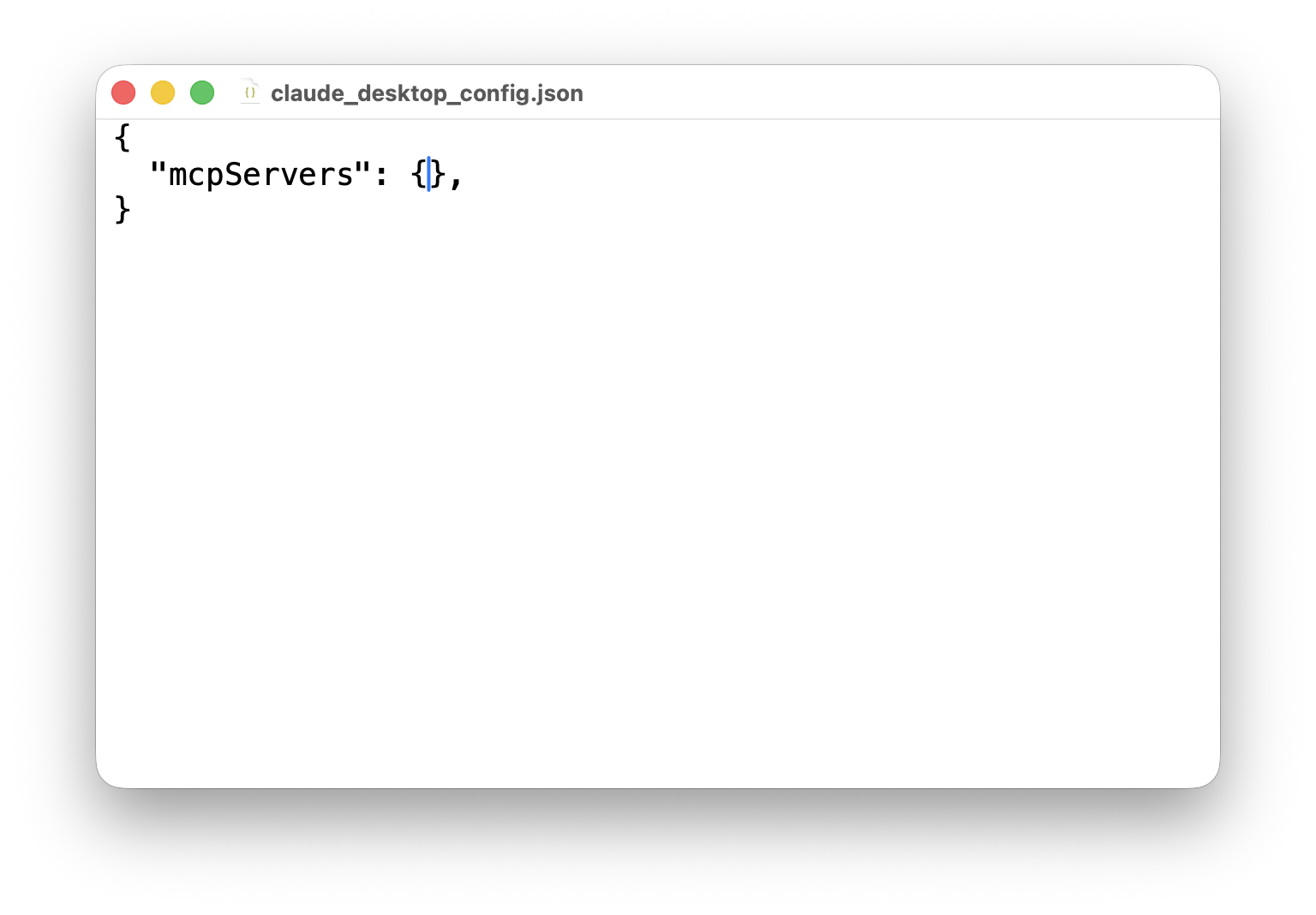 Add the following under `mcpServers` and provide your API key:
```json aws-us-east-1-elastica theme={null}
{
"mcpServers": {
"topk": {
"command": "npx",
"args": [
"-y",
"mcp-remote",
"https://elastica.api.topk.io/mcp",
"--header",
"Authorization: Bearer ${TOPK_API_KEY}"
],
"env": {
"TOPK_API_KEY": "your-api-key-here"
}
}
}
}
```
```json aws-eu-central-1-monstera theme={null}
{
"mcpServers": {
"topk": {
"command": "npx",
"args": [
"-y",
"mcp-remote",
"https://monstera.api.topk.io/mcp",
"--header",
"Authorization: Bearer ${TOPK_API_KEY}"
],
"env": {
"TOPK_API_KEY": "your-api-key-here"
}
}
}
}
```
Make sure you have **Node.js** installed with version **20** or **higher**.
Restart Claude Desktop to apply the changes.
Add the following to `~/.cursor/mcp.json`:
```json aws-us-east-1-elastica theme={null}
{
"mcpServers": {
"topk-elastica": {
"command": "npx",
"args": [
"-y",
"mcp-remote",
"https://elastica.api.topk.io/mcp",
"--header",
"Authorization: Bearer ${TOPK_API_KEY}"
],
"env": {
"TOPK_API_KEY": "your-api-key-here"
}
}
}
}
```
```json aws-eu-central-1-monstera theme={null}
{
"mcpServers": {
"topk-monstera": {
"command": "npx",
"args": [
"-y",
"mcp-remote",
"https://monstera.api.topk.io/mcp",
"--header",
"Authorization: Bearer ${TOPK_API_KEY}"
],
"env": {
"TOPK_API_KEY": "your-api-key-here"
}
}
}
}
```
Restart Cursor to apply the changes.
TopK MCP server is **region-specific**. See available regions [here](/regions).
## Available tools
Once connected, your agent will have access to `list_datasets` and `ask` tools.
Agents typically follow this flow:
1. Call `list_datasets` to discover what datasets are available
2. Select one or more relevant datasets
3. Call `ask` with a natural language query and the selected datasets
### `list_datasets`
Lists all available datasets in your TopK project. The agent should call this first to discover what data is available before answering any data-related questions.
### `ask`
Queries one or more datasets using natural language and returns a grounded answer.
These ask modes are supported:
* **auto** *(default)* — chooses the best mode based on the provided query
* **summarize** — gathers information from the datasets and returns a concise answer
* **research** — multi-step search and reasoning, best for analytical or comparative questions
Add the following under `mcpServers` and provide your API key:
```json aws-us-east-1-elastica theme={null}
{
"mcpServers": {
"topk": {
"command": "npx",
"args": [
"-y",
"mcp-remote",
"https://elastica.api.topk.io/mcp",
"--header",
"Authorization: Bearer ${TOPK_API_KEY}"
],
"env": {
"TOPK_API_KEY": "your-api-key-here"
}
}
}
}
```
```json aws-eu-central-1-monstera theme={null}
{
"mcpServers": {
"topk": {
"command": "npx",
"args": [
"-y",
"mcp-remote",
"https://monstera.api.topk.io/mcp",
"--header",
"Authorization: Bearer ${TOPK_API_KEY}"
],
"env": {
"TOPK_API_KEY": "your-api-key-here"
}
}
}
}
```
Make sure you have **Node.js** installed with version **20** or **higher**.
Restart Claude Desktop to apply the changes.
Add the following to `~/.cursor/mcp.json`:
```json aws-us-east-1-elastica theme={null}
{
"mcpServers": {
"topk-elastica": {
"command": "npx",
"args": [
"-y",
"mcp-remote",
"https://elastica.api.topk.io/mcp",
"--header",
"Authorization: Bearer ${TOPK_API_KEY}"
],
"env": {
"TOPK_API_KEY": "your-api-key-here"
}
}
}
}
```
```json aws-eu-central-1-monstera theme={null}
{
"mcpServers": {
"topk-monstera": {
"command": "npx",
"args": [
"-y",
"mcp-remote",
"https://monstera.api.topk.io/mcp",
"--header",
"Authorization: Bearer ${TOPK_API_KEY}"
],
"env": {
"TOPK_API_KEY": "your-api-key-here"
}
}
}
}
```
Restart Cursor to apply the changes.
TopK MCP server is **region-specific**. See available regions [here](/regions).
## Available tools
Once connected, your agent will have access to `list_datasets` and `ask` tools.
Agents typically follow this flow:
1. Call `list_datasets` to discover what datasets are available
2. Select one or more relevant datasets
3. Call `ask` with a natural language query and the selected datasets
### `list_datasets`
Lists all available datasets in your TopK project. The agent should call this first to discover what data is available before answering any data-related questions.
### `ask`
Queries one or more datasets using natural language and returns a grounded answer.
These ask modes are supported:
* **auto** *(default)* — chooses the best mode based on the provided query
* **summarize** — gathers information from the datasets and returns a concise answer
* **research** — multi-step search and reasoning, best for analytical or comparative questions